Changelog

  1. The DataDeck website is live

    DataDeck now has its own website at datadeck.datahub.io: what the app does ("Data, charts and insights you care about, in one deck"), a story page on how data has always moved the world, from a Mesopotamian clay tablet to John Snow's cholera map, and this changelog.
  2. A first DataDeck website preview

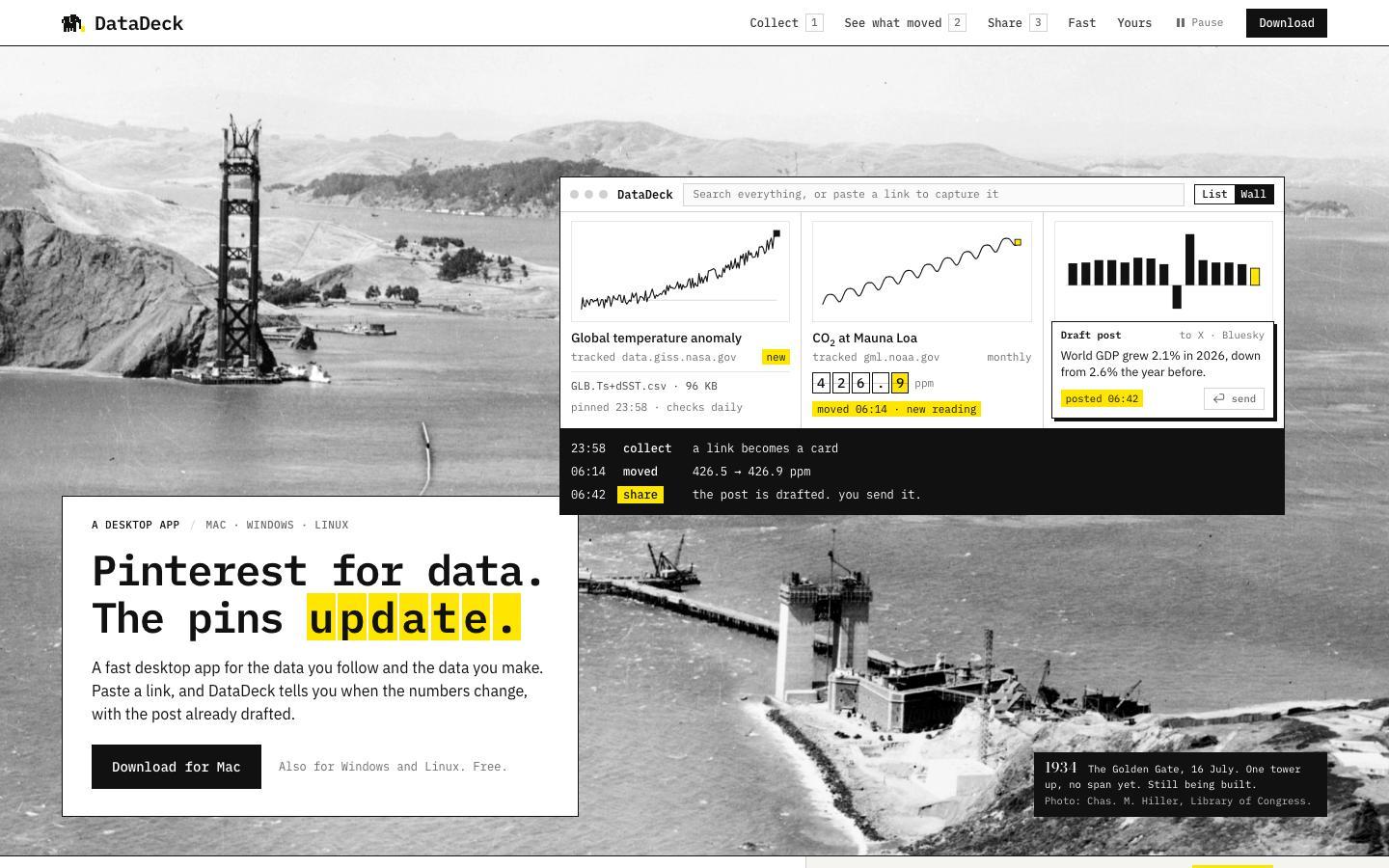
    DataDeck has a preview website that sets out where the app is heading: one deck for the data you follow and the data you make. The design is still being worked out, so the preview keeps several versions side by side for comparison. See the preview.

    One of the preview versions: a three-card deck over a 1934 photograph of the Golden Gate Bridge under construction
  3. Paste an image straight into DataDeck

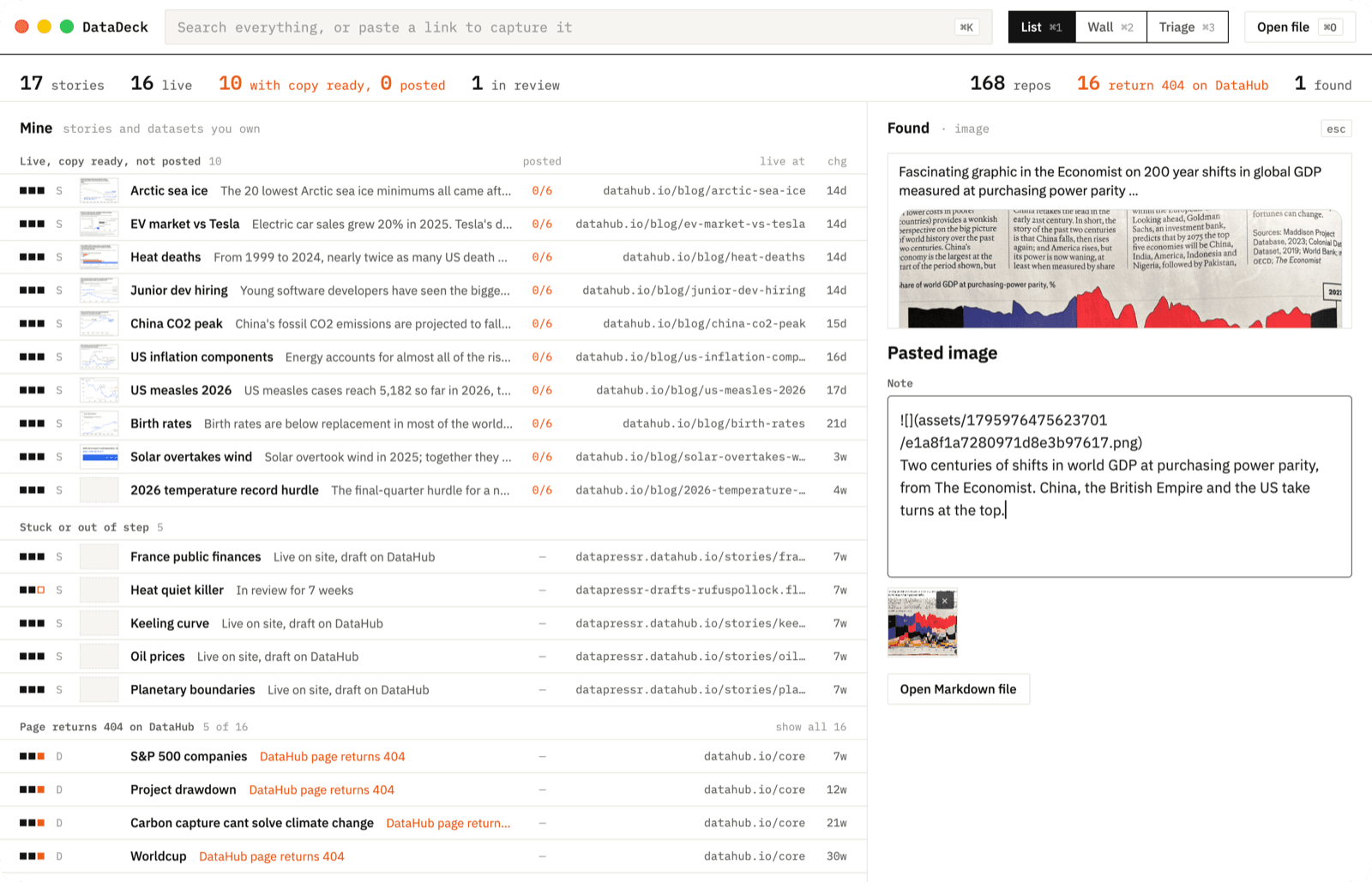
    Copy a screenshot or an image and press ⌘V on the Deck: it becomes a Found card of its own, no link needed, with its note open for typing. With a capture's note open, ⌘V adds the image to that capture instead. Images are kept in the capture's own assets/ folder and linked from its Markdown note, and show as small tiles under the note that you can open or remove.

    A pasted chart from The Economist as a Found card on the Deck, with a note typed under its Markdown image line and the image as a tile below
  4. DataDeck opens on the Deck

    DataDeck now opens on the Deck: the stories and datasets you own on one side, grouped by what needs you, and the links you have found on the other. Press ⌘V anywhere to capture a link and start its note, switch between List, Wall and Triage with ⌘1, ⌘2 and ⌘3, and press P to draft a post about any item with its chart and caption ready to copy.

    The Deck's List view with stories, datasets and captured links
  5. Keep captured pages as editable Markdown

    Each saved web link now has its own Markdown file in ~/.config/datadeck/inbox/. The note is the body, and the YAML frontmatter carries the original URL, title, capture time and discovered resources. Open the inbox directly from the Library, edit a note with another tool, and see the change when you return. Existing SQLite captures are imported on upgrade. Explore the storage format.

  6. Open and query datasets in DataDeck

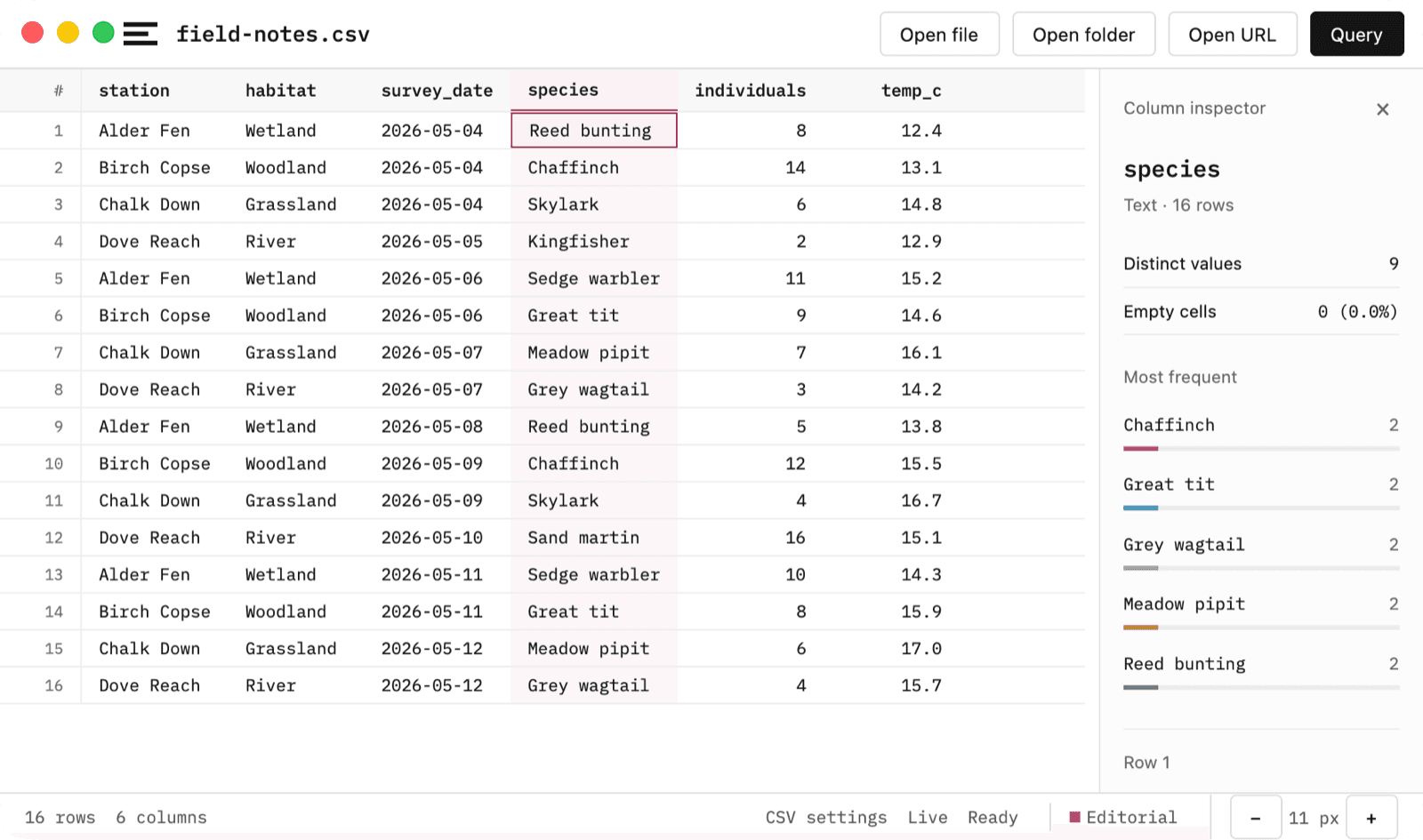
    Open CSV, Parquet and Excel files from disk or a download URL in DataDeck. Inspect column distributions, ask a question in SQL or plain language, and save a transformation to run again on another file. Try the desktop viewer

    Open a workbook by sheet or a Data Package by resource. Local files refresh after saves, and CSV import settings let you correct delimiter and header guesses.

    DataDeck desktop viewer with an adjacent column profile
  7. Compare column profiles and clean pasted data

    Paste spreadsheet cells into DataDeck, compare every field in the All columns view, and copy a selected range back out. The pictured quickstart and three narrated videos walk through inspecting a survey, cleaning its text, and saving the SQL for the next file. Follow the tutorial.

  8. Paste a link and start a note

    DataDeck opens to Saved, a full-width list of your most recent web captures. Open a data file, folder or download URL directly from the title bar. Paste or drop a URL and start typing or dictating in the notes area while the app finds the title, images, charts and downloadable tables. Revisit a note from the log, or capture the same URL again to move it to the top. Watch the capture walkthrough.

  9. Keep a library of data stories and datasets

    Drop a web link into DataDeck to save it alongside your notes. Open the Library to revisit a visualization, inspect files linked from an article, or return to the table you were exploring. The project also has a tagged release workflow for signed, notarized macOS downloads. Read the release guide.